On this page
- PowerPoint for Mac: Record, turn the camera on, then Record › Export to video.
- Keynote: add a Live Video to the slides, then Play › Record Slideshow.
- Google Slides: use its Record option, in Chrome on a computer.
- Any app: a screen recorder with a camera bubble.
1. PowerPoint for Mac
PowerPoint for Mac (Microsoft 365, 2024 or 2021) has a recording studio built in.
- Open your presentation and click Record at the top right, or choose Record › From Beginning (or From Current Slide).
- In the recording toolbar, turn on your camera and microphone. Your camera appears as a cameo on the slides.
- Present as usual, moving through the slides. Stop when you’re done.
- Choose Record › Export to video to get a video file you can upload anywhere.
PowerPoint for the web can’t record a slide show, so use the Mac app.
2. Keynote
Keynote’s Play › Record Slideshow records your voice over the slides. It doesn’t add your camera by itself.
To show yourself, add a Live Video to the slides first (it’s in the toolbar) and place it in a corner. People who use this report that the camera is captured in the recorded slideshow; check a short test before recording a long one. When you’re done, export the recorded slideshow as a movie with File › Export To › Movie.
3. Google Slides
Google Slides has a recorder that captures your voice and your webcam with the slides. It came first to Google Workspace plans (Business Standard and up, Enterprise and Education Plus) and works in Chrome on a computer.
Since August 2026, Slides also has a newer Record option, powered by Google Vids, that Google is rolling out to all Workspace customers and to personal Google accounts. It gives you a link to share. The older recorder moved to View › Slides Recording.
If neither is available on your account, record the Slides tab with a screen recorder, below.
4. Any app: a screen recorder with a camera bubble
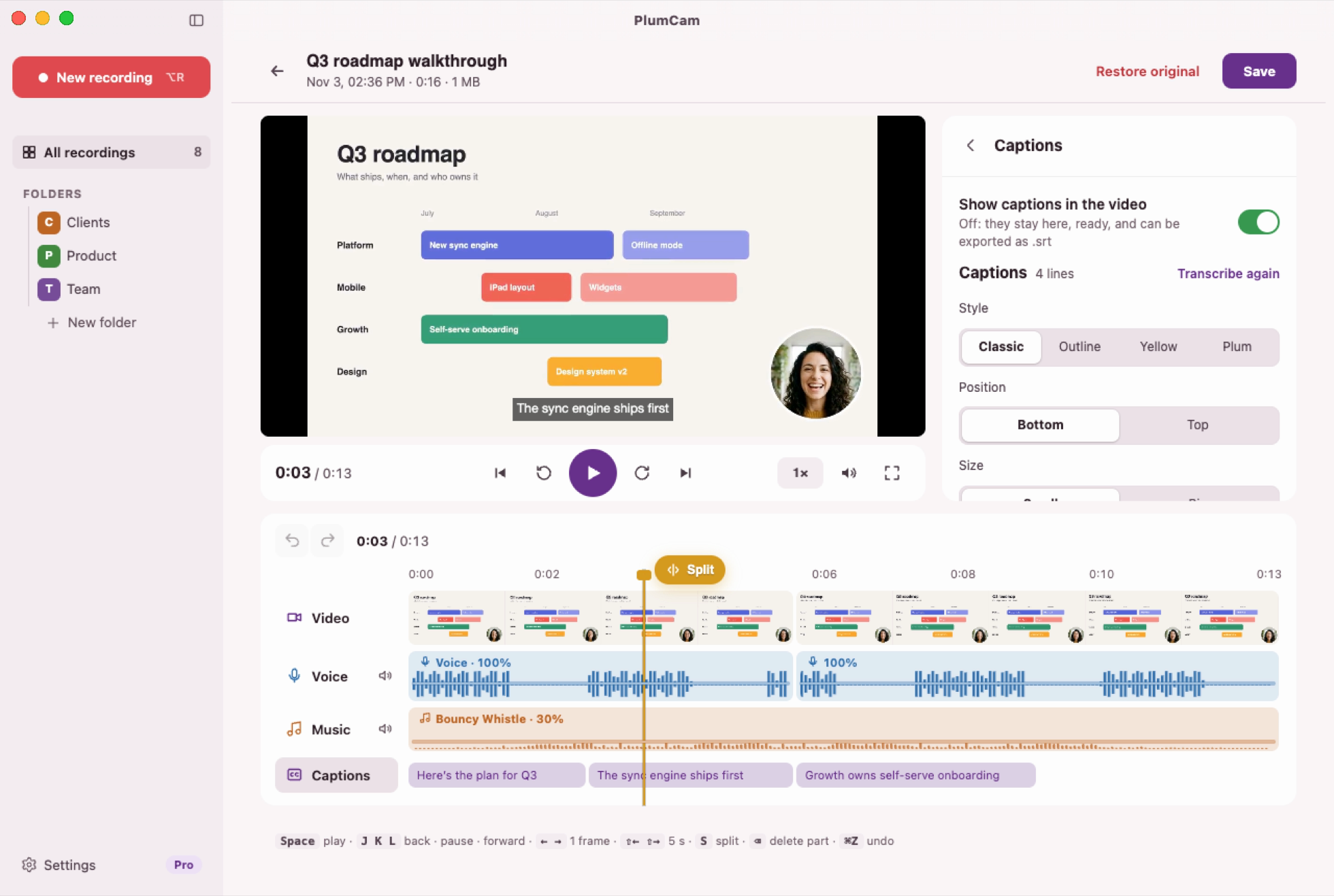
A screen recorder doesn’t care what’s on screen: slides, a website, a spreadsheet, code. You can switch from your slides to a demo halfway through, which a slides app can’t record. In PlumCam:
- Open your presentation, in full screen or in a window.
- In PlumCam, click New recording and pick that screen or window.
- Choose your camera and microphone. Drag the bubble to the corner your slides leave free, and pick its size; background blur hides the room behind you.
- Click Start recording, give your talk, and stop with Option R.
- On Pro, cut out the stumbles, add captions written for you, and export an .mp4.
For how screen recording on a Mac works in general, see how to screen record on a Mac.
5. Which to use
| Method | Your camera | Other apps in the same video | Cost |
|---|---|---|---|
| PowerPoint for Mac | Yes, as a cameo | No | Included with Microsoft 365, 2024 or 2021 |
| Keynote | With a Live Video on the slides | No | Free |
| Google Slides | Yes, on supported plans | No | Depends on your Google plan |
| PlumCam | Yes, in a bubble | Yes | Free (5-minute videos); Pro $9.99 a month, first month free |
If your lessons are only slides and you already use PowerPoint, its recorder is enough. If you switch between slides and other apps, or want to cut mistakes and add captions, use a screen recorder.
6. Tips for lessons and courses
- Keep videos short. One topic per video, a few minutes each. They’re easier to re-record, and easier for students to come back to.
- Leave room for your face. Keep one corner of your slides empty, so the camera never covers anything important.
- Light your face from the front. A window or a lamp behind the screen, not behind you.
- Use a headset or a USB microphone if you can. Sound quality matters more to viewers than picture quality.
- Add captions. They help students who watch without sound, in a second language, or with hearing loss.
- Export .mp4. Every course platform and learning management system accepts it.
Questions
Can PowerPoint record my camera with the slides?
Yes. In PowerPoint for Mac, click Record, turn the camera on in the recording toolbar, and export with Record › Export to video. PowerPoint for the web can’t record a slide show.
Does Keynote record video of me?
Record Slideshow records your narration. To show your camera, add a Live Video to your slides before you record.
Can I record a Google Slides presentation with my camera?
On supported Google Workspace plans, yes, in Chrome on a computer. On any plan, you can record the Slides tab with a screen recorder that shows your camera.
What’s the best way to record lessons for an online course?
Record each lesson as its own short video, keep your camera where it doesn’t cover the slides, cut the stumbles and add captions. Export an .mp4, which every course platform accepts.
Record your next lesson in one take
Slides, demos and your face, with captions written for you. Basic is free; Pro’s first month is free, then $9.99 a month.

- Microsoft: Record a slide show with narration and slide timings (macOS)
- Apple: Record a presentation in Keynote on Mac
- MacMost: Record video presentations with you in them using Keynote
- Google Workspace Updates: Create shareable video presentations in Google Slides
- Google Workspace Updates: Record presentations in Google Slides with Google Vids